An Intro to HTML
HTML Stands for HyperText Markup Language
HTML is the standard markup language/format for creating web pages, containing the content and structure of a page as a series of
-
HTML – MDN
When in doubt, refer to the MDN documentation! -
Basics of HTML
A very calming introduction by Laurel Schwulst. -
Organizing Files for the Web
Sasha Portis on (web) file-naming, for when you get to saving.
In our ongoing analogy, HTML is the .html extension—
As we heard in our first class, this format was codified by our pal Tim Berners-Lee in 1991, evolving from his earlier SGML, a similar/proto language. There have been five major revisions to the spec since then, which added (and sometimes
- HTML 1, 1991
- HTML 2, 1995
- HTML 3, 1997
- HTML 4, 1997 (busy year)
- HTML 5, 2014
The Basic Document
HTML consists of a range of elements, nested inside one another, like a matryoshka doll of text.
The <html> element contains all elements of the page. In diagram here, the <head> element contains the <title>, and the <body> contains the <h1> and <p> elements.
We call these
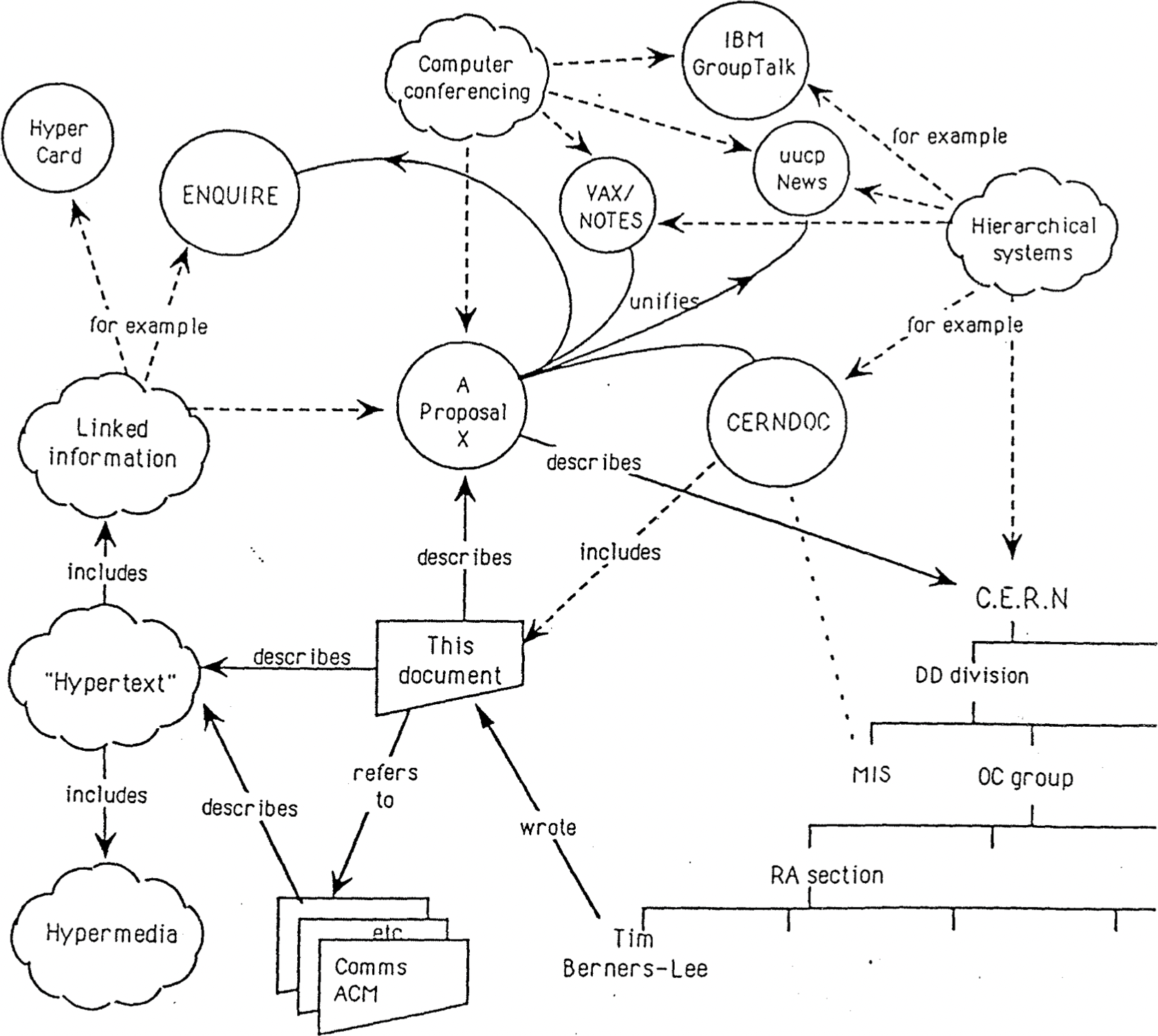
The Semantic Web is not a separate Web but an extension of the current one, in which information is given well-defined meaning, better enabling computers and people to work in cooperation.
What Does That Even Mean
						<!doctype html>
<html>
	<head>
		<title>Page title</title>
	</head>
	<body>
		<h1>This is a heading</h1>
		<p>This is a paragraph.</p>
		<p>This is another paragraph.</p>
	</body>
</html>
In our example, here is what we’ve told the computer:
-
<!doctype html>What type/version of HTML this file contains, so it knows how to parse it.
-
<html></html>The root element of an HTML page, containing all the content.
-
<head></head>The
meta information about the HTML page—like its title, default language, and any scripts and stylesheets it needs to display the page.Nothing in this element is visible on the page itself!
-
<title></title>Specifies a title for the page—which is shown in the browser’s tab, and when it is shared.
-
-
<body></body>Defines the document’s body—the container for all the visible contents, such as headings, paragraphs, images, hyperlinks, tables, lists, etc.
-
<h1></h1>Defines a primary/first-level heading.
-
<p></p>Defines a paragraph.
-
-
We use semantic elements to help structure and describe our content—but also for accessibility (screen
What Are Elements?
Elements are composed of
HTML Elements Reference – MDN
MDN will always go deep; this is
Some elements do not have any content or children, like <br> or <img>. These are called
- Headings:
<h#> -
<h1>There should only be one first-level heading!</h1>There are also
<h2><h3><h4><h5>and<h6>. These provide semantic organization and hierarchy for your document! - Paragraphs:
<p> -
<p>You should always wrap your text in a paragraph!</p>Our basic, default text element.
- Links:
<a> -
<a href="https://www.example.com">Links need attributes!</a>The
<a>is foranchor —oneend of the link.The
href(H ypertextREF erence) specifies a URL that the link points to, and the tag wraps the visible link text. Thisattribute can point to another, local HTML file (living in the same directory structure) or an external page. They can also point to specific parts of a page. - Images:
<img> -
<img src="example.jpg" alt="Images should have descriptions!">The
srclikewise can point to a local image file or an external URL!altprovides a description for accessibility/screen readers. More on theseattributes in a bit. - Containers
-
						<body>
	<header>
		<!-- A header. -->
	</header>
	<main>
		<!-- Your main content. -->
	</main>
	<footer>
		<!-- The footer. -->
	</footer>
</body>
Some others are
<nav>,<article>,<section>, and<div>(when nothing else is more appropriate).These are the structural containers of a website. The names don’t imbue function directly, but help us organize and think about our content structure—and also are helpful for accessibility.
- Inline Text Elements
-
<p>You may have noticed I like using<em>emphasis</em>.</p>These wrap around bits of text (within headings or
<p>) for semantic meaning and to apply specific styles using<span>,<strong>,<em>,<abbr>,<cite>,<time>,<code>,<mark>,<del>,<ins>,<sub>, and<sup>. - Lists:
ol/<ul> -
						<ul>
	<li><!-- A list item. --></li>
	<li><!-- Another. --></li>
	<li><!-- A third. --></li>
</ul>
If you have three of something, it is probably a list! There are also
ol.
There are many, many HTML elements, all with particular uses. (We’ll unpack some more, later.)
Attributes
All HTML elements can have attributes, which provide more information about the element:
HTML Attribute Reference – MDN
There are a lot of them.
Common Attributes
- Language:
lang -
<html lang="en"></html>The
langattribute of the<html>tag declares the language of the Web page. - HyperText Reference:
href -
<a href="https://www.example.com">Goes to example.com</a>The
hrefattribute of<a>specifies the URL of the page the link goes to. - Target:
target -
<a href="https://www.example.com" target="_blank">New tab!</a>The
targetattribute_blankcan tell an<a>to open in a new window/tab.This can be annoying, so use it judiciously!
- Style:
style -
<p style="color: blue;">This is blue text.</p>The
styleattribute is used to add styles to an element, such as color, font, size, etc.We’ll use CSS for this kind of thing, but know this is how it used to be done and it was brittle and terrible.
- Source:
src -
<img src="example.jpg">The
srcattribute of<img>specifies the path to the image to be displayed.<iframe src="https://typography-interaction-2526.github.io"></iframe>Same thing for an
<iframe>, which is a little window into another website. - Dimensions:
width/height -
<img src="example.jpg" width="200" height="200">The
widthandheightattributes of<img>provide size information for images.Not required, but helps prevent layout “sloshing” as images load.
- Alternate Text:
alt -
<img src="example.jpg" alt="A description of the image.">The
altattribute of<img>provides an alternate text for an image, used by screen readers. - Identifier:
id -
<h2 id="a-heading-element">A heading element</h2><a href="#a-heading-element">Goes to “a heading element”</a>The
idspecifies a singular, unique element on a page—for CSS targeting and anchor (scroll ,jump ) links, prepended with#. - Class:
class -
<p class="warning">We’ll get into this soon.</p>The
classattribute provides an additional way to select the element in CSS or JS.
Case, White Space, Tabs, Line Breaks
Generally speaking, HTML doesn’t care about capitalization, extra white space, or line breaks (one exception, below). The browser will just read everything from left to right, as if it is one long, running sentence. So the shouty <html> and quieter <html> are interpreted the same.
How Whitespace Is Handled – MDN
It depends! It always depends.
The browser parses both of these in the exact same way:
						<body>
	<h1>Dog Breeds</h1>
	<p>There are many kind of dog breeds</p>
	<ul>
		<li>German Shepherd</li>
		<li>Bulldog</li>
		<li>Poodle</li>
	</ul>
</body>
						<body><h1>Dog Breeds</h1><p>There are many k
ind of dog breeds</p><ul><li>German Shepherd
</li><li>Bulldog</li><li>Poodle</li></ul></body>
But obviously, the left one here is much more readable to us humans. We can use white space, tabs/indenting, and line breaks to make it easier for us to read the code.
There are a lot of common patterns used—like indenting to indicate hierarchy/nesting. But there are also no wrong ways to do it! In HTML, spaces are code
Code is read more often than it is written. Code should always be written in a way that promotes readability.
Block Elements
<address>
<article>
<aside>
<blockquote>
<canvas>
<dd>
<div>
<dl>
<dt>
<fieldset>
<figcaption>
<figure>
<footer>
<form>
<h1> – <h6>
<header>
<hr>
<li>
<main>
<nav>
<noscript>
<ol>
<p>
<pre>
<section>
<table>
<tfoot>
<ul>
Inline Elements
<abbr> <a> <cite> <code> <del> <em> <img> <ins> <mark> <span> <strong> <sub> <sup> <time>
Inline Whitespace
Inline elements are the exception to the “white space is generally ignored” rule: extra space between inline elements will always be reduced—
						<p>
	<span>Hello</span>
	<span>World</span>
</p>
…displays as Hello World, not HelloWorld.
So Many Elements
Comments
You can
Lists
Any time you have more than two of something, you probably have a
Description Lists
There are specific lists for defining things:
Details / Summary
There is even some basic interactivity (way, way ahead of JavaScript) with
Tables
They used to be the only way to achieve multi-column or grid layouts, but that has luckily since been replaced by modern CSS techniques like flexbox, and grid. (Or even float.) We’ll talk about those later!
Again, there are many, many, many, many HTML elements. Try and find the one that best fits your usage, wherever possible using a
User-Agent Styles
We haven’t applied any styles/CSS here yet, so everything we see in these examples is based on the
This is what the web was, before CSS! But as a designer, rarely what you want. We’ll get into writing our own styles in the coming weeks.
In case of conflict, consider users over authors over implementors over specifiers over theoretical purity.
•••
Of course, it is preferred to make things better for multiple constituencies at once.